Windows Upgrade
Simon Brown • January 5, 2020
Free upgrade from Windows 7 to Windows 10 is still available!
Yesterday I powered on a small ATOM 330 server which was last started five years ago. Well, up came Windows 7 Professional and of course the normal zillions of updates appeared. Anyway, I wondered whether the now officially expired free update from Windows 7 to Windows 10 was still available. Google brought me to this link on www.zdnet.com.
In https://www.zdnet.com/article/heres-how-you-can-still-get-a-free-windows-10-upgrade/
the suggestion is to go to the Download Windows 10 webpage
which I did. then I clicked the Download too now button. Thereafter I just followed my nose and two hours later my little server was proudly running a licenced version of Windows 10.
So the free upgrade from Windows 7 to Windows 10 is till available!
Toodles


July 26th, 2026 Reuter RSR200B Added initial support. Fobos Finalised support for Fobos SDR, only the Agile firmware is supported. Some early Fobos SDR units had HF2 and HF1 swapped on the case printing. FFT When using NVIDIA CUDA for the FFT the returned buffers now use memory from the heap rather than pinned memory (*). Reduced the CPU load in the FFT Helper DLL. The data from the FFT (CUDA, IPP, OpenCL) is processed to match the display DIPs. When running Broadcast-FM with x4 resolution there were 550 FFT bins per display pixel (DIP). These 550 bins were averaged which takes quite some processing, especially when running a matrix display with many receivers enabled. I now down-sample the bins to a maximum of (about) 32 which doesn't affect the display or any DSP but does reduce the CPU. Frequency Database Loading of the frequency database into memory-mapped backing now much faster. Pluto TX Doppler support for Pluto / LibreSDR. Have tested this by adding debug info, seems OK 🙂 . RDS Added variable font size in the RDS editor window. Forced uppercase of PS text in the RDS Editor removed. Change to RDS Logfile updates while the editor is open & visible. Updates are now allowed, previously not so. Recordings Fixed font size error in the playback, navigation window (was incorrect logic). When starting the video recorder a sanity check makes sure the selected folder exists and is accessible. Satellite Satellite definition file format has changed, no need to update your settings but support for the new OMM (.xml) format is included. I'm hosting satellite data on my (new) Akamai server, these is currently a cache of the Celestrak data. I'll add a web page soon which explains what's been happening. Transmit Audio mute is now a per-profile setting. Other Fixed an error opening the matrix display while the SDR was already started. Crash when selecting "Configure" from the Select Radio window fixed. Does not create an error when the graphics driver restarts.
SDR Television v1.1.3 User Interface Fixed erroneous cursor flicker in Settings help text and Receive, Transmit panes. Fixed error in the spectrum squelch logic. Minor fix/improvement in QPSK LUT lookup for low values. Receiver Use highest possible quality decimation for symbol rates of 333ksps and lower. Added optional Doppler correction for LEO/MEO satellites such as MARMOTsat (July 2026). This will most probably be tweaked when the DVB-S2 transmissions started. Downloads are at the bottom of this page.

SDR Television v1.1.2 June 12th, 2026: Add option to disable audio, thus making more bits available for video, this is for use in DATV contests. Note: 66 ksps sample rate is still experimental, will be improved. Downloads are at the bottom of this page.
SDR Television v1.1.1 June 9th, 2026: Fixes a fatal bug in the Settings, Camera page. Downloads are at the bottom of this page.
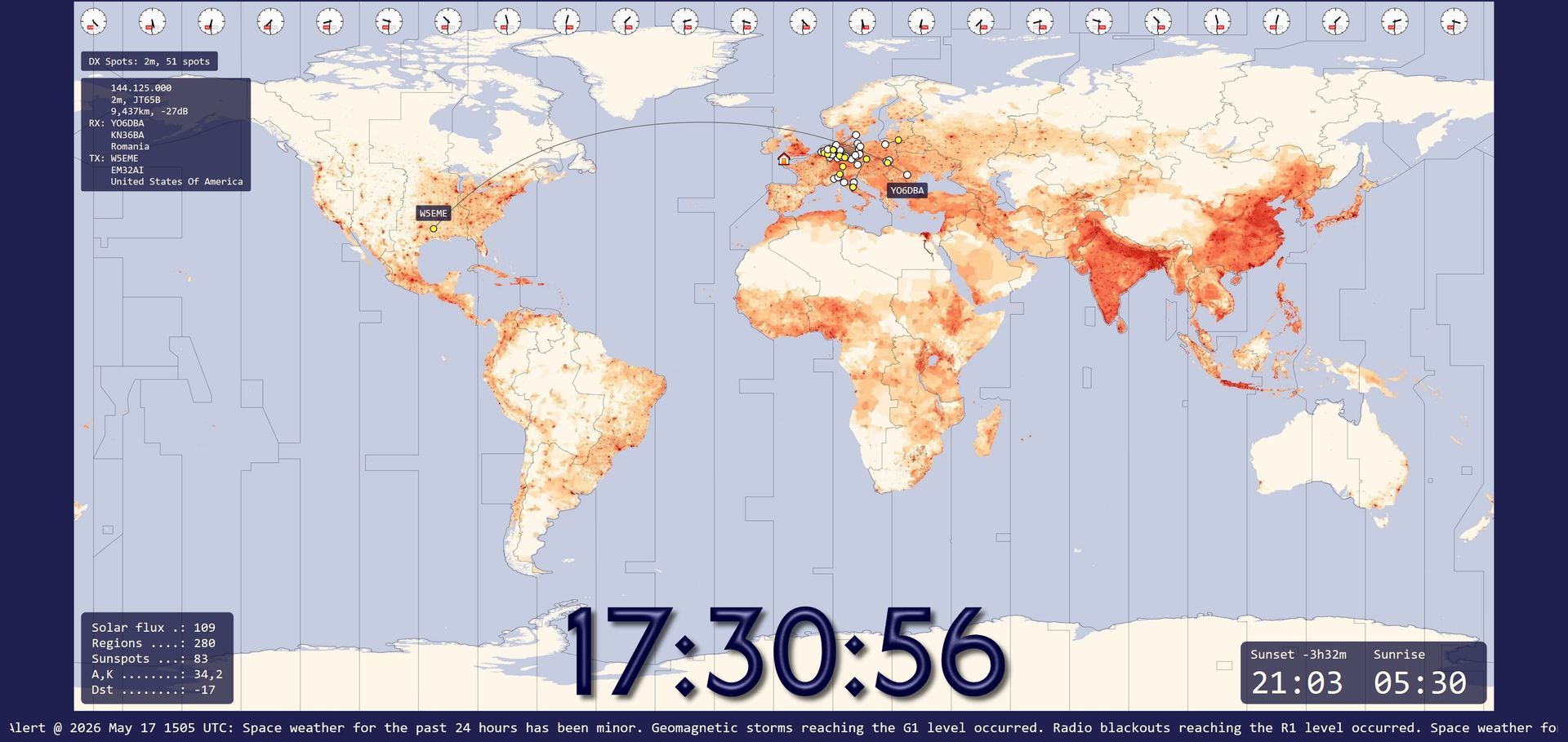
Version 1.6.2 This release fixes two bugs in the new DX Spot feature. The spot age logic incorrectly affected spot display. When the map was zoomed, station markers off the map would be displayed at the top left (0, 0). Downloads are on the World Map page . Version 1.6.1 This release fixes two fatal bugs in the new DX Spot feature. When the graphics engine is restarted, resources are correctly released. Fixed a resource leak when processing the MoseMove logic. Downloads are on the World Map page . Version 1.6 This release adds the display of DX Spots. Display spots are submitted to PSK Reporter which in turn are relayed by a MQTT Broker running on a high performance Akamia node. Spot Format Each spot consists of these fields: Sequence Frequency Band Mode Signal level Time stamp Sending station call, square, country Receiving station call, square, country Note: The country is the ADIF country. Spots are displayed as they arrive, currently no on-demand database. Bandwidth To reduce bandwidth from the broker, filtering is required for 80m up to and including 15m. Filtering requires at least one field below to be set in a definition: Receiver callsign, square or country. Sender callsign, square or country. Without filtering the bandwith from the broker could be excessive. For LF and VHF+ no filtering is required due to the lower number of spots sent on these bands. In a later version the bandwidth restriction may be reduced.
Version 1.6.1 This release fixes two fatal bugs in the new DX Spot feature. When the graphics engine is restarted, resources are correctly released. Fixed a resource leak when processing the MoseMove logic. Downloads are on the World Map page . Version 1.6 This release adds the display of DX Spots. Display spots are submitted to PSK Reporter which in turn are relayed by a MQTT Broker running on a high performance Akamia node. Spot Format Each spot consists of these fields: Sequence Frequency Band Mode Signal level Time stamp Sending station call, square, country Receiving station call, square, country Note: The country is the ADIF country. Spots are displayed as they arrive, currently no on-demand database. Bandwidth To reduce bandwidth from the broker, filtering is required for 80m up to and including 15m. Filtering requires at least one field below to be set in a definition: Receiver callsign, square or country. Sender callsign, square or country. Without filtering the bandwith from the broker could be excessive. For LF and VHF+ no filtering is required due to the lower number of spots sent on these bands. In a later version the bandwidth restriction may be reduced.
Version 1.6 This release adds the display of DX Spots. Display spots are submitted to PSK Reporter which in turn are relayed by a MQTT Broker running on a high performance Akamia node. Spot Format Each spot consists of these fields: Sequence Frequency Band Mode Signal level Time stamp Sending station call, square, country Receiving station call, square, country Note: The country is the ADIF country. Spots are displayed as they arrive, currently no on-demand database. Bandwidth To reduce bandwidth from the broker, filtering is required for 80m up to and including 15m. Filtering requires at least one field below to be set in a definition: Receiver callsign, square or country. Sender callsign, square or country. Without filtering the bandwith from the broker could be excessive. For LF and VHF+ no filtering is required due to the lower number of spots sent on these bands. In a later version the bandwidth restriction may be reduced.
SDR Television v1.1 May 18th, 2026: This is the official v1.1 release , code exactly the same as 1.0.16 which has survived testing for a few weeks. Lots of improvements since the last official kit. As with any software project, there's always room for improvements and new features, but for now here's a stable solution which works well with the QO-100 satellite. Many thanks to Sigi and the DATV test team. Downloads are at the bottom of this page.

SDR Television v1.0.14 April 12th, 2026: A new kit, lots of improvements since the last official kit. As with any software project, there's always room for improvements and new features, but for now here's a stable solution which works well with the QO-100 satellite. Many thanks to Sigi and the DATV test team. Downloads are at the bottom of this page.